 LeaveWise
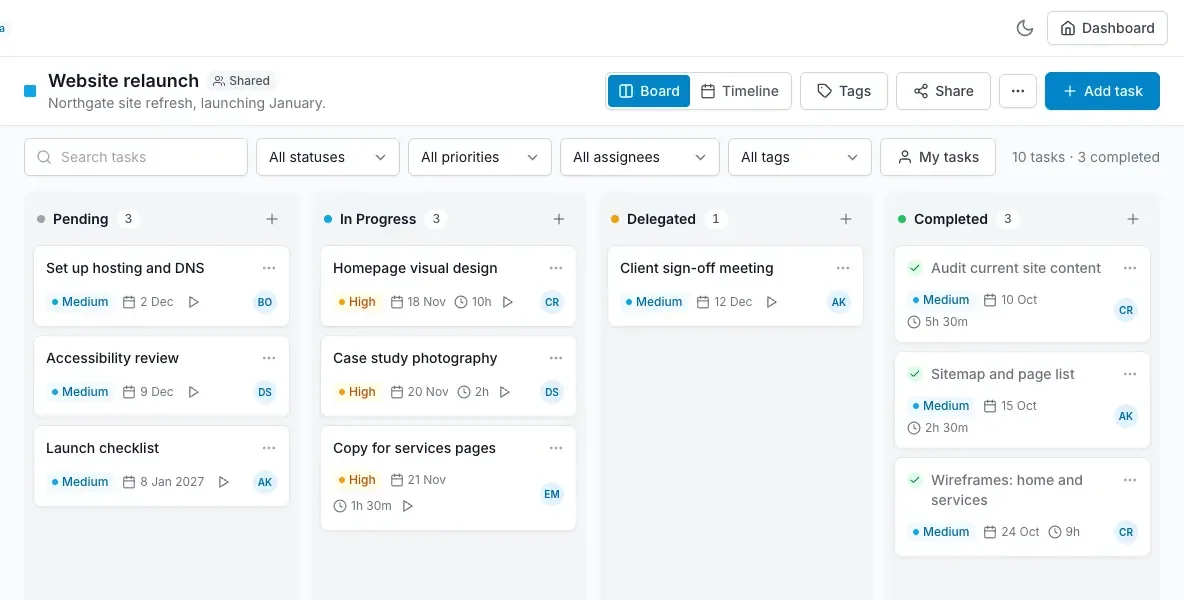
Share a board
Open the board menu and choose Share. Enter a colleague’s email address — it must be someone already in your LeaveWise team — and pick a level:
- View: can open the board and read tasks and comments.
- Edit: can add, change, move and archive tasks, and comment.
- Admin: everything Edit can do, plus share the board, change its settings and archive it.
People outside your team cannot be added. Boards marked shared with the team are already visible to everyone in the team, so sharing them is only needed to give someone edit or admin rights.
Remove someone from the same screen. The board owner always keeps full access.
Deleting is archiving
When you delete a board or a task, LeaveWise archives it rather than removing it. Archived items disappear from boards and lists, but for 30 days they can be brought back:
- Open Archived at the bottom of the Planwise sidebar.
- Find the board or task and click Restore.
A restored task goes back to its board; a restored board comes back with all its tasks, comments and tags. After 30 days the archive is emptied automatically and the item is gone for good.
Who can restore: the person who archived it, the board owner, board admins and team admins.
What team admins can see
Team admins have a deletion audit in Planwise itself — open Audit at the bottom of the Planwise sidebar — showing who archived or restored which board or task, and when, plus a summary of deletions by person. It exists so that an accidental or unexpected deletion can be traced and undone quickly.