 LeaveWise
Three things live inside a task: the steps it takes, the time spent on it, and whether it comes round again. Click a card to open the task and you will find all three.
Checklists
Under the description, type a step into Add a step and press Enter. The box stays ready for the next one. If you already have the steps written somewhere, paste them in: each line becomes a step, and bullets or numbering are removed.
- Tick a step when it is done.
- Click a step’s text to reword it.
- Point at a step and click the cross to remove it.
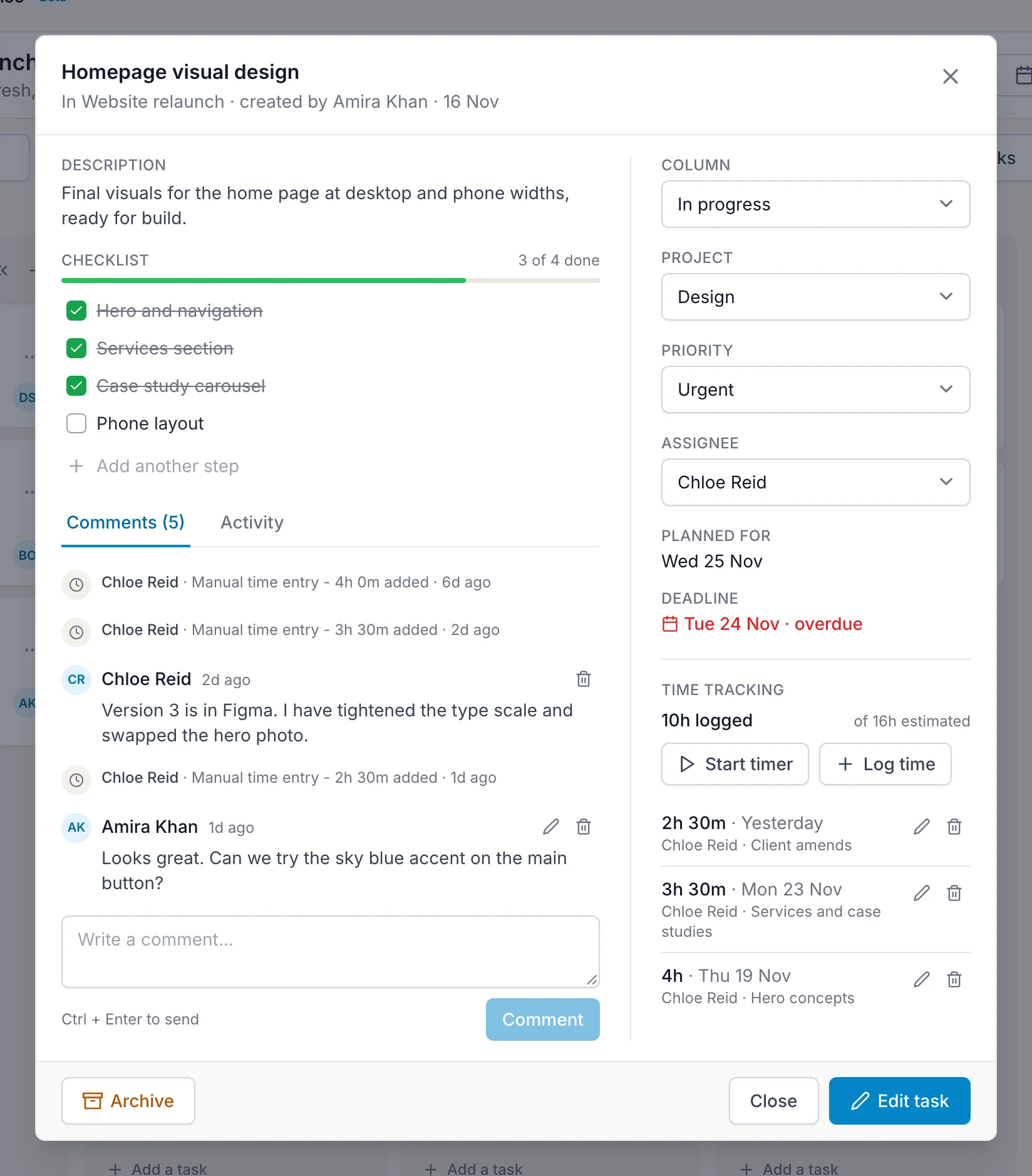
The task shows how far along it is (“3 of 4 done”), and so does its card on the board (3/4), which turns green when every step is ticked. A checklist can have up to 60 steps.
A checklist is for the steps inside one piece of work. If a step needs its own deadline or a different person, make it a task.
Logging time
There are two ways to record time against a task.
The timer. Click the play button on a card, or Start timer in the task. You can pause and resume it. Stop & log saves the time, rounded up to the whole minute. A running timer carries on if you move to another page or close the tab, in the browser where you started it.
By hand. In the task, click Log time and enter:
- how long. Write it the way you would say it:
45m,1h 30m,1.5hor1:30. A number on its own is minutes; - the day it was done, today or earlier;
- a note about what it was for, if you want one.
A single entry can be up to 24 hours.
Correcting or removing time
Every piece of time you log is kept as its own entry, listed in the task with how long, which day, who logged it and the note. So if you type 3 hours when you meant 3 minutes, you can put it right:
- click the pencil on the entry to change its length, day or note; or
- click the bin to remove it. Planwise asks you to confirm first.
The task’s total is always the sum of its entries. It is shown in the task against the estimate, and on the card. Each addition, change and removal is recorded in the task’s Activity tab.
Time that was logged before entries were kept appears as a single entry marked “Logged before entries were kept”. You can correct or remove that one in the same way.
Anyone who can change a task can log time on it and correct its entries. Someone with view-only access to a board can read the entries but not change them. Team admins see the hours logged per board and per person on the Planwise tab of Reports.
Repeating tasks
For work that comes round again, such as a weekly check or the month-end invoices, open the task’s form (Add task, or Edit task on an existing one) and choose how often it repeats:
- every day, or every weekday;
- every week, or every 2 weeks;
- every month, every 3 months, or every year.
A repeating task carries a repeat mark on its card. When you complete it, by dragging it to a done column, from its menu or by ticking it in My work, Planwise creates the next one straight away and tells you when it is set for.
The next task:
- starts in the board’s first column that does not count as done;
- keeps the title, description, priority, assignee, estimate, project and tags;
- has the same checklist, with every step unticked;
- has a clean sheet for comments and time.
Its dates move on by the interval. If the task had a planned day, a deadline, or both, each moves on by one interval and the gap between them stays the same. If you complete a task late, the dates skip ahead to the first ones after today, so you are never handed a task that is already overdue. A monthly task set for the 31st lands on the last day of a shorter month. A task with no dates at all is planned for one interval from the day you complete it.
Completing the same task twice (for example, reopening it and finishing it again) does not create a second copy.
To stop a task repeating, open the latest one and set Repeats to “Does not repeat”.