 LeaveWise
A supporting document adds context to a particular leave request. It can be useful where your organisation asks for evidence, without putting the document into a shared calendar or circulating it among colleagues.
LeaveWise accepts PDF, image and Word documents for request attachments. Only upload information relevant to the request and your organisation’s policy.
Add a file to the request
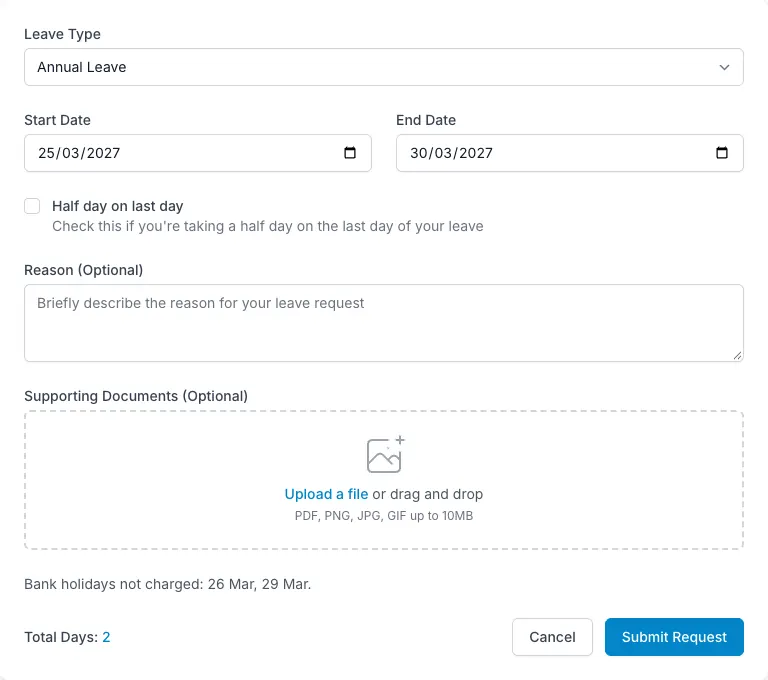
Open the request form and choose the leave type and dates. Use the supporting-document option to attach the file, then check that you selected the intended document.
Add a short note if an explanation is needed. Avoid copying an entire document into the note; keeping the attachment and the explanation separate makes the request easier to review.
Before submitting, check the date range, day count and any warnings as you would for a request without an attachment.
Understand who can view it
Supporting files are kept privately and are viewable by the person and their admins. The request’s approver can review the supporting document as part of making a decision.
Department managers see their own department’s approval queue. Being visible in Who’s Out does not mean a colleague has access to a request’s supporting file.
Files use private storage with short-lived signed links. Treat a link or downloaded copy as sensitive information even though it came from an access-controlled area.
Give the approver enough context
The approval view brings together the dates, number of days, note, document, restrictions and department coverage. A clear attachment helps the approver understand the request without asking the employee to resend material by email.
The document does not change how entitlement is calculated or automatically approve the request. The normal approval workflow still applies.
Use the right place for other records
A contract, certificate or equipment record may belong in the person’s HR records rather than on a leave request. HR documents have their own employee-visibility option and optional expiry reminders.
If you attached the wrong information or need help correcting a submitted record, contact a team admin. Do not send sensitive employee documents to general support unless the team has specifically agreed a suitable way to handle them.