 LeaveWise
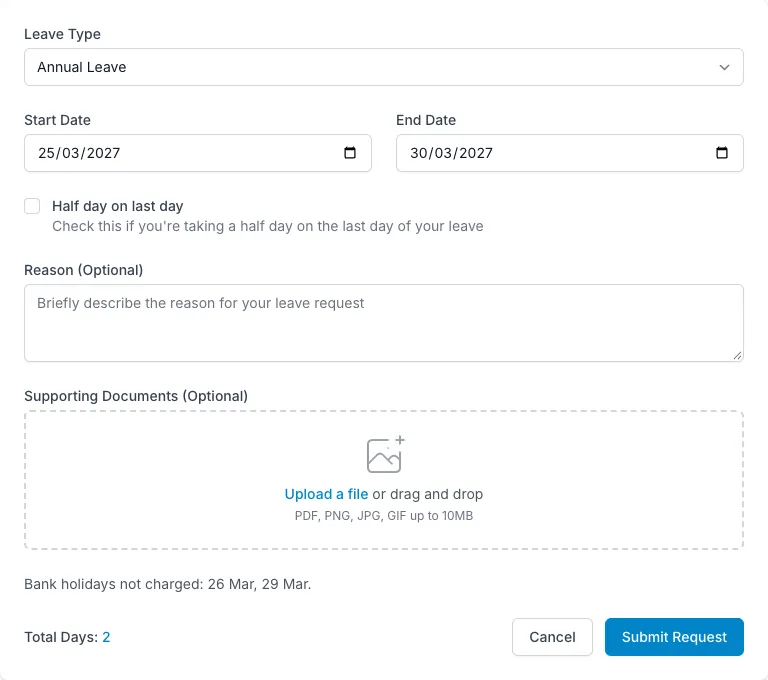
The request form shows what a booking will cost before you submit it. Use that preview to check the dates, the working-day calculation and any team rules that apply.
Your team’s configuration affects the result. A colleague on a different working pattern can request the same date range and be charged a different number of days.
Enter the request
Choose the leave type and the start and end dates. Select a half day when appropriate, and add a note if the approver needs context. You can also attach a supporting PDF, image or Word document.
Bookings can be made up to the end of the next leave year. Check which year the request belongs to when planning further ahead.
Read the day-count preview
The form counts days on your own working pattern. If bank-holiday deduction is enabled, it identifies holidays that are not charged. That avoids having to calculate a long weekend or Easter booking separately.
The preview also shows restricted dates and colleagues in your department who already have leave booked. A blocked range prevents an employee request; a warning range allows the request but flags it for you and the approver.
Read the reason attached to a restriction before deciding what to do next. If a booking needs an exception, speak to an admin rather than changing dates just to avoid the warning.
Check the balance
Balance checks include approved and pending leave. A request waiting for a decision is therefore considered when assessing whether you have enough days for another request.
If the result looks wrong, check your working pattern, leave type and year, then ask an admin to review the balance breakdown. Do not assume the headline entitlement is the number still available.
Submit and follow the decision
Requests go to your department manager if one is assigned, otherwise to team admins. The approver sees the dates, days, note, attachment and relevant coverage information.
Approval or rejection generates email notifications. You can cancel your own pending or approved leave if your plans change.
For leave entered on your behalf by an admin, the booking is approved immediately and the history identifies who created it.