 LeaveWise
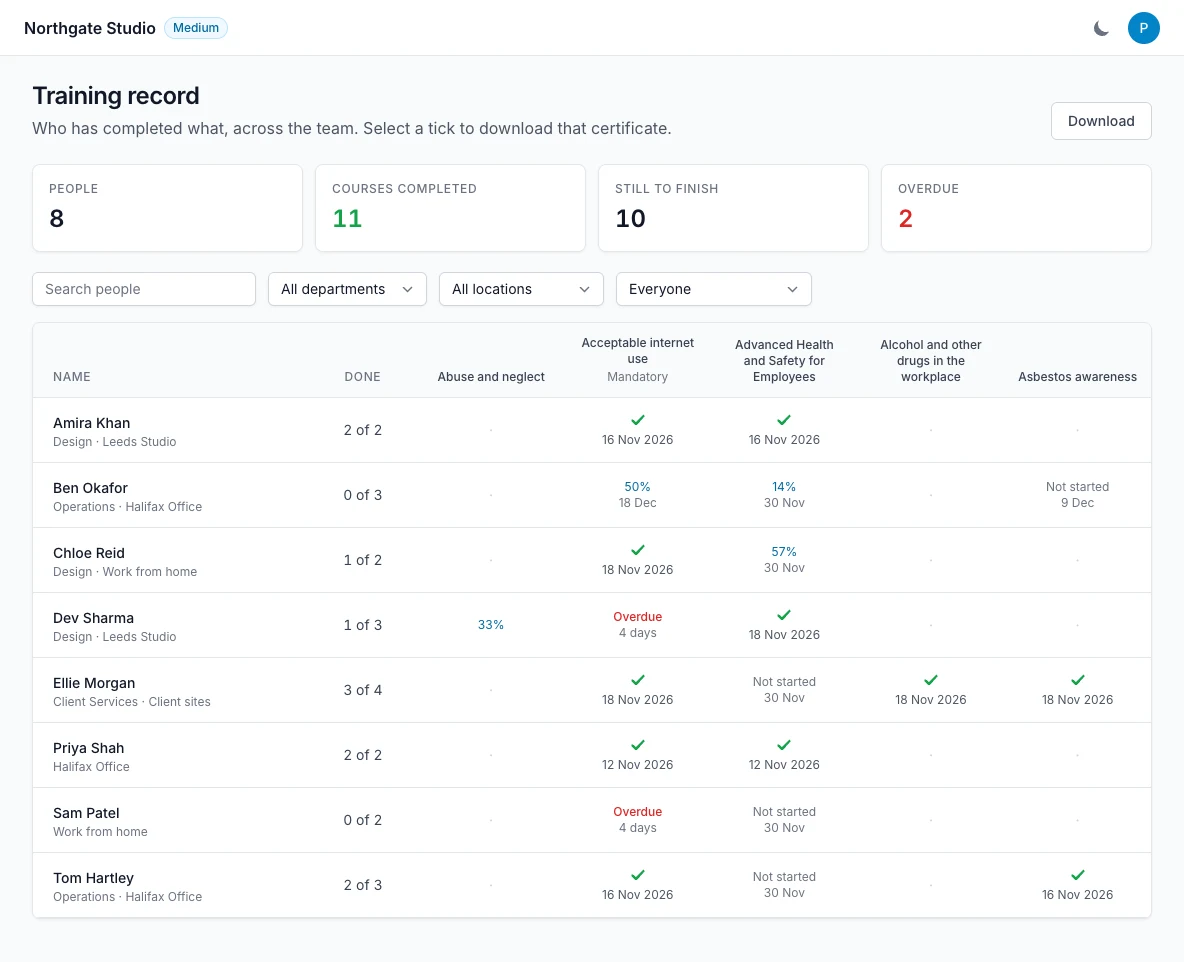
The training record answers one question: who has completed what. It is under Learn → Training record in the sidebar.
Who can see it
- Team admins see everyone on the team.
- Department managers see the people in the departments they manage.
- Everyone else sees only their own training, on My learning and on their profile.
Read the record
There is one row per person and one column per course. Each cell shows where that person is with that course:
- A green tick and a date. Completed on that date.
- A percentage. In progress, with how far they have got and the due date.
- Not started. Assigned but not opened, with the due date.
- Overdue, in red, with how many days.
- A dot. Not assigned.
A cell marked renewal means the person has completed the course before and has been asked to take it again. The Done column counts completed courses out of the courses that person has.
Only courses somebody in view has are shown as columns, so the table stays as narrow as it can. A course you have switched off still appears if people completed it, marked “Switched off”.
The four figures at the top count the people in view, courses completed, courses still to finish and courses overdue.
Find what you need
- Search for a person by name.
- Filter by department or location.
- Use the Show selector for With overdue training, With training to finish or With no training yet.
The figures at the top follow the filters, so “how many courses are overdue in Operations?” is one selection.
Download the record
Select Download to save what you are looking at as a spreadsheet (CSV). It has one row per person, with their department and location, their totals, and a column per course saying “Completed 18 Nov 2026”, “In progress 57%”, “Overdue” and so on. Filters apply, so you can download one department or only the people who are overdue.
To download the detail for a single course, including scores and attempts, use Download on that course’s page. See Assign and manage courses.
Download a certificate
Select any green tick to download that person’s certificate as a PDF. It shows their name, the course, the date, the score, your organisation and a reference.
Certificates can also be downloaded:
- by the person, from My learning → Completed or the Learning tab of their profile;
- by an admin, from the course’s Assigned people table or the person’s profile.
When someone retakes or renews a course, the certificate from each time they passed is kept. The training record shows the most recent.
A person’s training
Team admins can select a name in the training record to open that person’s profile on the Learning tab. It lists the courses they still have to finish, with due dates and progress, and every course they have completed.
When someone completes a course
The record updates immediately. If training emails are on, the person’s department manager is emailed the course, the date and the score; where they have no department manager, the team admins are emailed instead. Nobody is emailed about their own completion.
The completion is also listed in Reports → Audit under Learning. See The audit log.
What a completion means
A completion records that a named person read every section of the course and answered at least four of the five questions correctly on that date. The courses are awareness training: general guidance, not legal advice or an accredited qualification. Where the law requires formal or practical training for a role, keep the evidence for that training as well.