 LeaveWise
Learn is where you take training courses. Each one is a short read, usually 15 to 30 minutes, followed by five questions. You can stop at any point and carry on later.
Find your courses
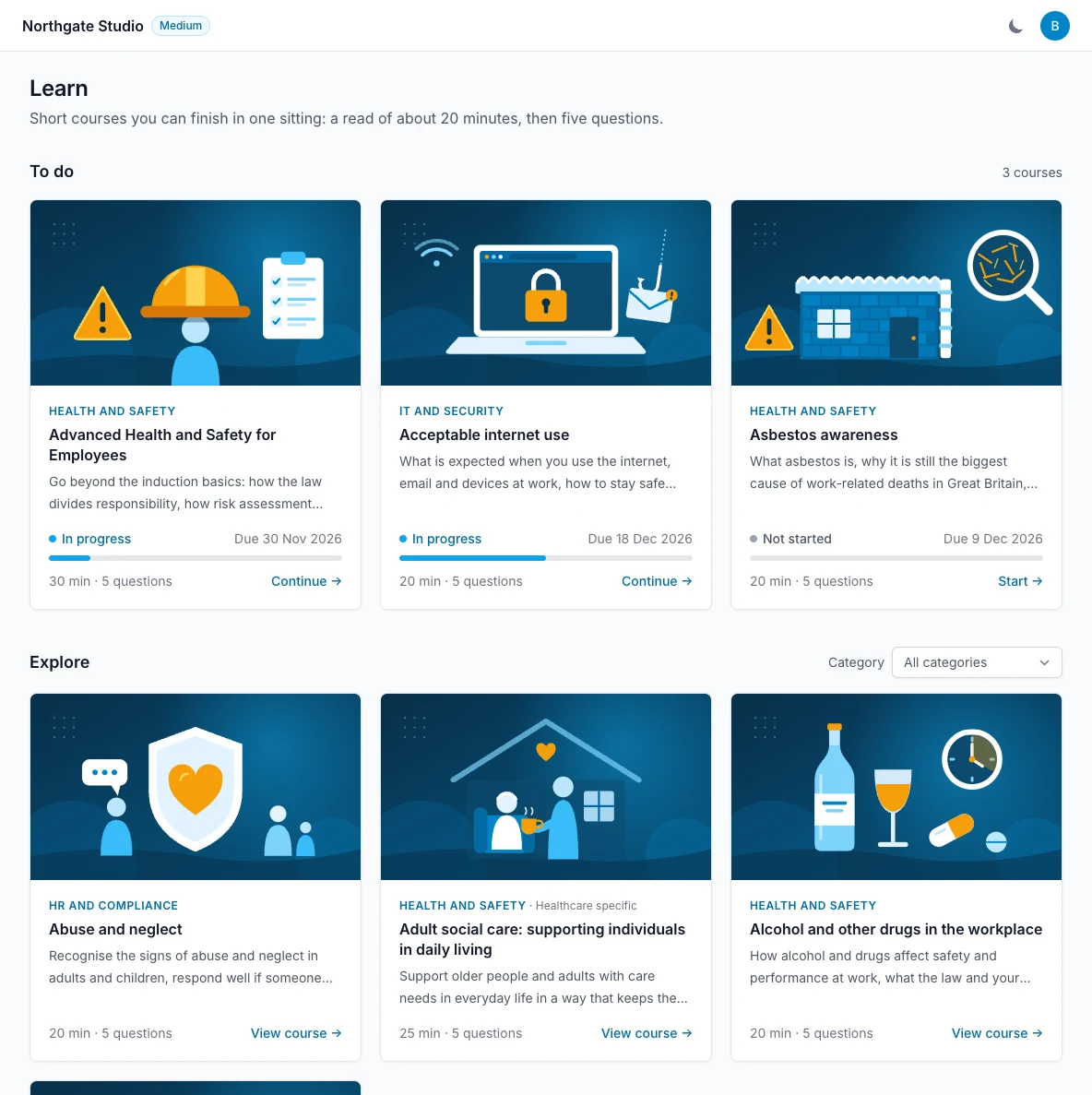
Select My learning under Learn in the sidebar. The page has three parts:
- To do. Courses you have been assigned, or have chosen to take, that you have not finished. Anything overdue is listed first.
- Explore. Courses your team has left open for anyone to take. Use the category selector to narrow the list.
- Completed. Everything you have passed, with the date, your score and your certificate.
Courses to do also appear on your Dashboard under Learning to complete, and you are emailed when one is assigned to you.
Start a course
Select a course to open its overview: what it covers, how long it takes and what you will be able to do by the end.
- For a course in To do, select Start the course.
- For a course in Explore, select Enrol and start. You can also choose Look through it first to read it without enrolling; nothing is saved until you enrol.
Read the sections
The contents are listed on the left, or under Contents on a phone. Read a section and select Continue to move to the next. Each section you finish is ticked and your progress is saved, so you can close the page and come back.
Most courses include a What would you do? scenario. It is not scored. Choose an answer to see why it is right or wrong, and try the others if you like.
When you come back to a course you have started, Continue where you left off takes you to the first section you have not read.
Answer the questions
Check your knowledge unlocks once you have read every section. There are five questions, and you need four right to pass. Answer all five and select Submit answers.
- If you pass, the course is complete. You see your score, the explanation for every answer, and a button to download your certificate.
- If you do not pass, you see your score and which questions to look at again. The correct answers are not shown. Re-read the sections if it helps, then select Try again. There is no limit on attempts.
Your certificate
Select Download your certificate on the completion screen, or Certificate next to the course under Completed at any time. It is a PDF with your name, the course, the date, your score, your organisation and a reference.
Your manager and your team admins can see that you have completed the course and can download the certificate too. Some teams switch certificates off for a particular course; in that case there is no download for it.
Due dates and reminders
If a course has a due date it is shown on the course card. You are reminded by email a week before, the day before, and while it is overdue. Finishing the course stops the reminders.
Renewals
Some courses have to be taken again after a period, for example every year. When that time comes the course returns to To do and you are emailed. Your earlier certificate stays on your record.
Read a course again
You can open any completed course and read it again. The questions are not asked a second time unless the course is due for renewal or an admin asks you to retake it.
On a phone
Learn works in your phone’s web browser. Courses are not in the LeaveWise iPhone app yet.
The courses are awareness training. They are general guidance, not legal advice or an accredited qualification, so always follow your organisation’s own policies and procedures.