 LeaveWise
Team admins control which courses the team sees and who has to take them. Everything is under Learn → Manage courses in the sidebar.
The course list
Manage courses lists every course in the library with three numbers: how many people have it, how many have completed it and how many are overdue. A line under the title shows anything you have changed, such as “Mandatory for everyone” or “Switched off”.
Select a course to open its page. Select Preview the course there to read it exactly as your team will.
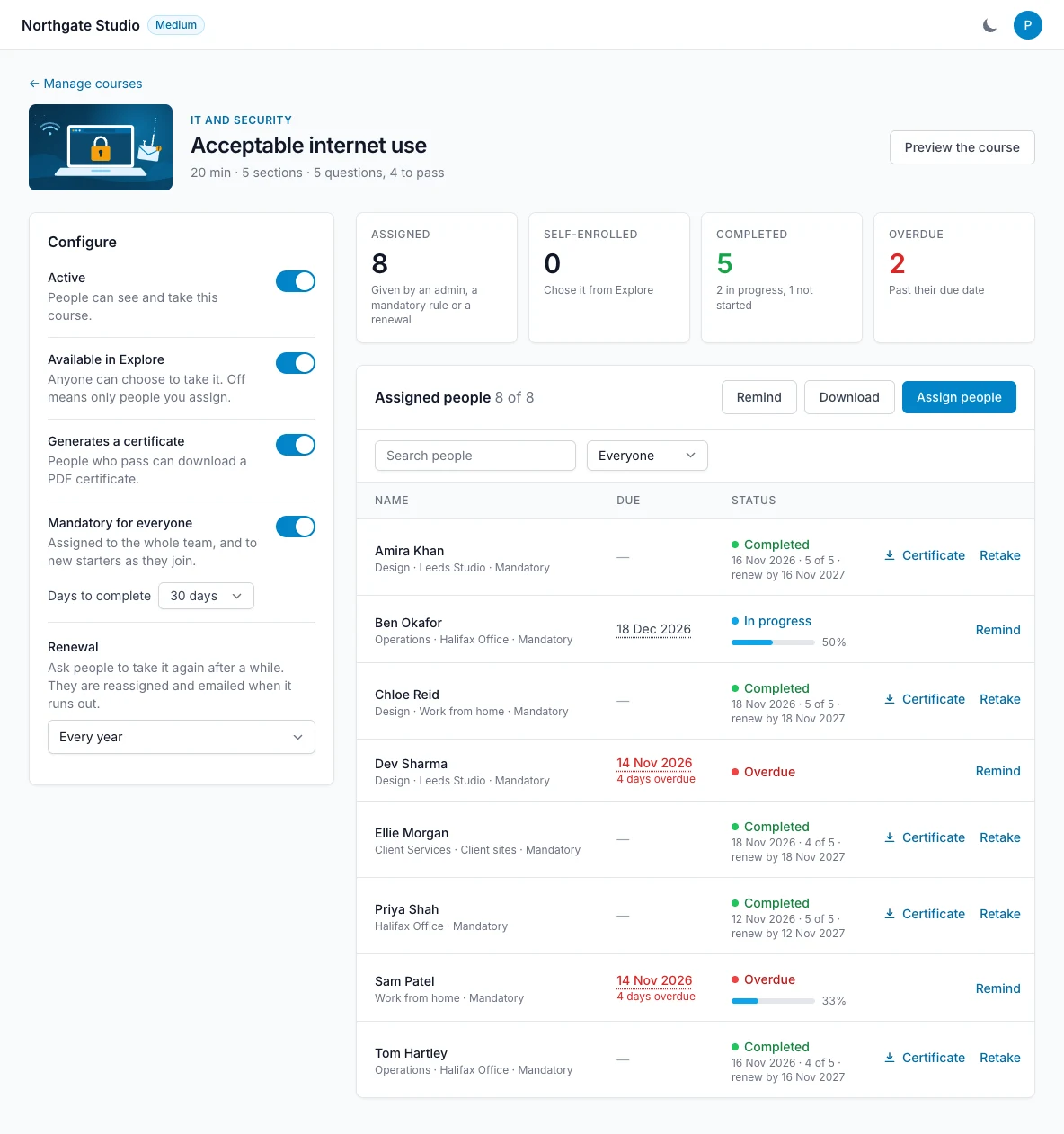
Configure a course
Each course has its own settings. A change saves as soon as you make it.
- Active. On means people can see and take the course. Switch it off for a course that does not apply to your business. People who had not finished it stop seeing it and stop being reminded; completions and certificates are kept, and switching it back on restores everyone’s progress.
- Available in Explore. On means anyone on the team can choose to take it. Off means only people you assign can see it.
- Generates a certificate. On means people who pass can download a PDF certificate.
- Mandatory for everyone. Assigns the course to the whole team, and to every new starter automatically. See below.
- Days to complete. How long people have when a course is assigned by the mandatory rule or by a renewal.
- Renewal. Never, or every 6 months, year, 2 years or 3 years. See below.
All nine courses start active and available in Explore, with certificates on.
Assign a course
On the course page select Assign people and choose who:
- Everyone. All active people on the team.
- Departments. One or more departments.
- Locations. One or more locations. See Locations.
- Specific people. Search and tick names.
Add a due date if you want one, then select Assign. The dialog shows how many people will be assigned before you confirm. Anyone who already has the course is skipped, so it is safe to assign to a department again after someone joins it.
Each person is emailed with a link to the course, and it appears on their Dashboard and under To do in Learn.
Make a course mandatory
Switch on Mandatory for everyone. LeaveWise tells you how many people do not have the course yet and asks you to confirm. They are assigned it straight away, due in the number of days you have set, and emailed.
From then on, anyone who joins the team is assigned the course automatically, usually by the next morning, with the same number of days to complete it.
While a course is mandatory, people cannot be removed from it. Switch Mandatory for everyone off first.
Set a renewal
Choose a Renewal period. When that time has passed since a person completed the course, it returns to their To do list from the start, with a new due date, and they are emailed. Their earlier completion and certificate stay on their record.
The training record and the course page show a renew by date next to each completion.
Manage the people on a course
The Assigned people table lists everyone with the course, when it is due and how far they have got. Use the search box and the status filter to find people.
- Change a due date. Select the date in the Due column, pick a new one and press Enter. Clear it to remove the due date.
- Remind. Select Remind on a row to email that person, or Remind above the table to email everyone who has not finished. This reminder is sent even if automatic training emails are switched off.
- Retake. For someone who has completed the course, Retake puts it back on their list from the start and emails them. Their earlier certificate is kept.
- Certificate. Download the certificate of anyone who has completed the course.
- Remove. Takes the course off a person’s list. If they had completed it, the completion and certificate stay on their record.
- Download. Saves the list as a spreadsheet (CSV), including department, location, how the course was assigned, due date, status, score and renew-by date.
The four tiles above the table show how many people were assigned the course, how many chose it themselves, how many have completed it and how many are overdue.
Emails LeaveWise sends
With training emails on, which they are by default:
- When a course is assigned, or is due for renewal, the person is emailed.
- A week before and the day before a due date, the person is reminded.
- The day after the due date, and every week while it is overdue, the person is reminded.
- When someone completes a course, their department manager is emailed the course, date and score. If they have no department manager, the team admins are emailed.
- Every Monday, each manager gets one list of their people with overdue training.
Turn them all off with Send emails about training in Learn in Team Settings → Leave rules → Reminders. Courses are still assigned, including mandatory courses to new starters; only the emails stop. See Reminder emails.
The audit trail
Assigning, removing, reminding, changing a due date, asking for a retake, changing a course’s settings and every completion are listed in Reports → Audit under Learning. Answers to the questions are never recorded there.