 LeaveWise
Sometimes an absence needs to be recorded by an admin. Someone may have phoned in sick, or an agreed booking may need to be entered while the person cannot access the app.
Use the dedicated booking-on-behalf workflow so the record clearly identifies who created it. Do not sign in as the employee or treat the action as an ordinary request from them.
Open the person’s booking action
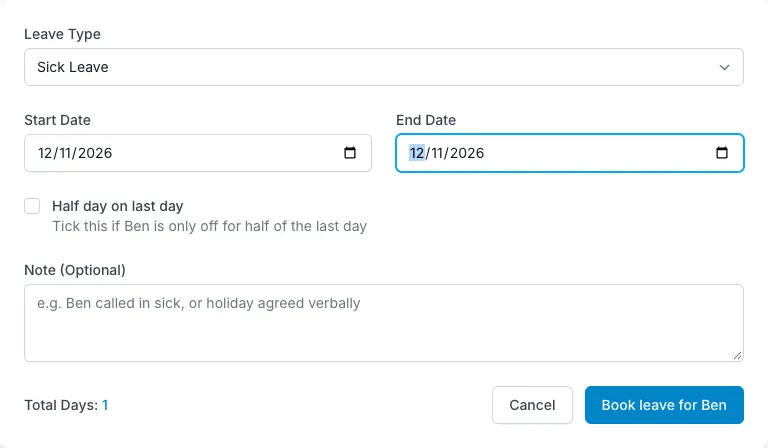
From Our People or the person’s profile, choose “Book leave”. Confirm that you have selected the right employee before entering any dates.
Select the appropriate leave type and date range. Use the person’s actual absence dates and any applicable half-day option. Add relevant context without including unnecessary sensitive information.
Check the calculation
The person’s own working pattern matters. A date range covering five weekdays does not necessarily cost five days for someone who works only three of them.
Bank-holiday deduction, where enabled, also affects the working-day calculation. Review the details rather than using an external rough total as the final record.
Restricted dates warn admins booking on someone’s behalf rather than blocking them. This allows real absence, such as sickness during a busy period, to be recorded accurately even where employee holiday requests would be blocked.
Understand the immediate approval
An admin’s booking on behalf is approved when it is created. It does not wait in the ordinary employee approval queue.
The employee receives an email, and the leave history and audit log identify the admin who booked it. This distinction is also available in reporting, making it possible to separate ordinary approvals from absence recorded directly by an admin.
Check the finished record
Review the person, type and dates after booking. The record should accurately describe the absence and be understandable to whoever later reviews balances or payroll data.
Payroll export uses the recorded absence and working-day calculations for the selected range. A correctly attributed booking is therefore useful beyond the immediate calendar view.
If a record needs correcting, follow the available administrative workflow or ask for support. Do not create a second overlapping booking simply to compensate for a mistake without checking how both records would affect the balance.