 LeaveWise
Plans change. LeaveWise allows a person to cancel their own pending or approved leave, so an abandoned booking does not have to stay in the team’s time-off picture.
Cancellation and rejection are different actions. Rejection is an approver’s decision on a request. Cancellation records that the person no longer intends to take the booked leave.
Find the right booking
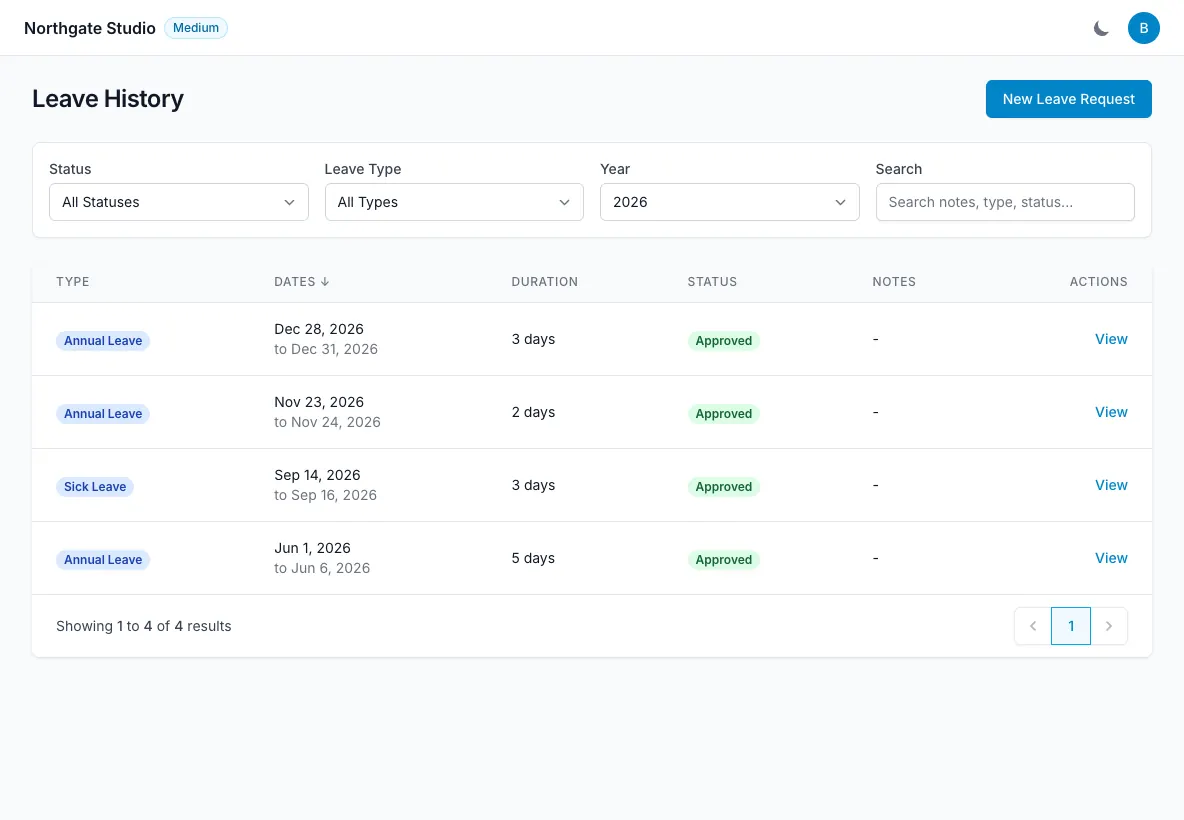
Open your leave records and locate the request you want to cancel. Check the leave type, dates and status carefully, especially if you have several requests around the same period.
Make sure you are acting on the booking you intend to remove. A similar-looking request may belong to a different leave year or cover a different part of the same week.
Cancel pending or approved leave
Use the booking’s cancellation action and review any confirmation shown by the app. Both pending and approved leave can be cancelled by the person.
If you still need time off on different dates, check the existing booking first rather than leaving multiple requests active while deciding which one to use.
Pending requests count in the balance check. Keeping an unwanted pending request can therefore affect your ability to request other dates, even though nobody has approved it yet.
Check the balance and calendar
After cancelling, review the record and your available balance. Check the relevant leave year and type rather than comparing unrelated totals.
The app’s calendar views reflect leave records. If you subscribe through Google Calendar, Outlook or Apple Calendar, the external service controls when it refreshes its feed, so its display may take longer to catch up.
Keep colleagues informed
If people have already arranged cover or a handover, let them know your plans have changed. Updating the record is useful, but it does not replace a conversation about work already reassigned around the original booking.
For a booking made by an admin on your behalf, the history identifies that admin. If you are unsure how a particular record should be corrected, ask your team admin to review it with you.
When making a replacement request, read the cost preview again. Different dates may include different working days, bank holidays or restricted periods.