 LeaveWise
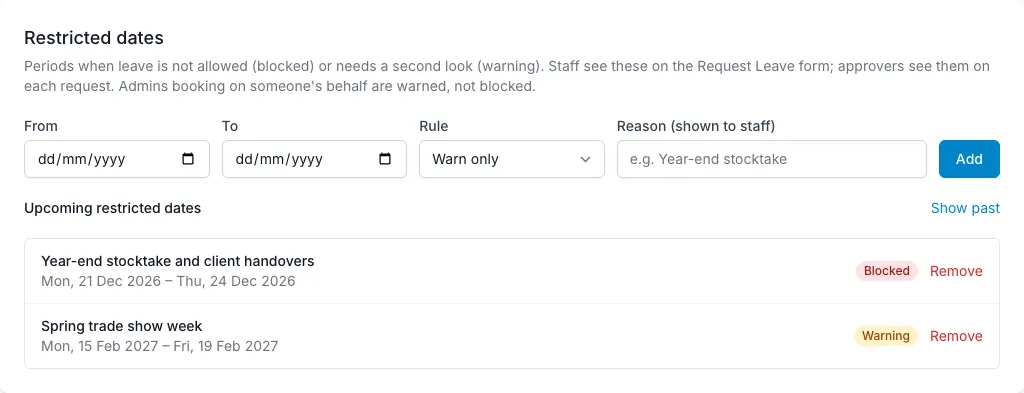
Restricted dates let admins communicate rules around periods that need particular care. Each range can be a hard block or a warning, with a reason shown to the requester.
Use the option that matches the actual policy. A date that needs a conversation is not necessarily the same as a date on which requests should be refused.
Create a date range
In the team’s leave rules, add the relevant start and end dates and choose the restriction type. Write a reason that someone making a request can understand without needing to find an old email.
Check both ends of the range. A restriction covering a busy week should not accidentally include adjacent dates that are meant to remain available.
Review the rule with the people responsible for approvals before relying on it across the team.
Use a block for a firm rule
A blocked range refuses employee requests that fall within the restriction and shows the reason. It is appropriate where the configured policy genuinely prevents the booking.
An employee should not have to guess whether their request failed because of the balance, dates or a team rule. The restriction’s reason provides that context.
If an exception is needed, the person should speak to an admin rather than submitting misleading dates.
Use a warning for extra attention
A warning range allows a request but flags it to both requester and approver. This makes the relevant dates visible while leaving room for a decision.
The approver can review the flag alongside coverage information, the note and any supporting document. A warning is context, not an automatic rejection.
Choose this approach when team coverage or circumstances need to be considered rather than ruled out in advance.
Understand admin bookings
Admins booking on someone’s behalf are warned rather than blocked. This allows an actual absence, such as sickness phoned in during a busy week, to be recorded accurately.
The booking is approved immediately, the person is emailed and the history identifies the admin who created it. That keeps the exception attributable.
Review date ranges as the business calendar changes. Clear, current restrictions are more useful than a long list of old ranges whose reasons no longer match how the team works.