 LeaveWise
Your team is the shared space for people, leave policies, requests and reports. Start with the organisation’s basic rules, then invite people once you have checked their starting position.
You do not need to set up Planwise to manage leave. It is included in your subscription and can be used whenever task boards would be useful.
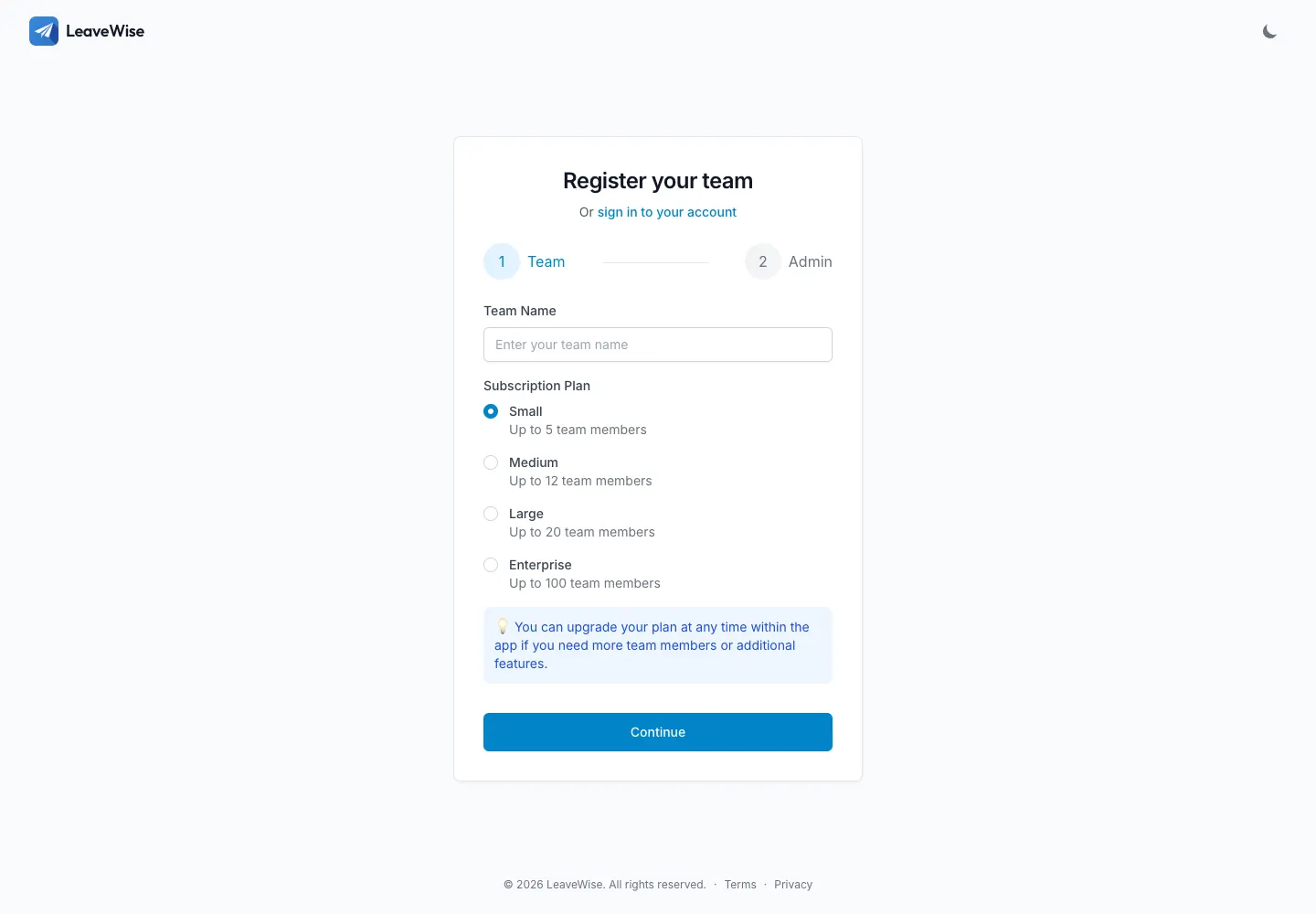
Choose a plan for your team size
Open LeaveWise sign-up to create your account and team. Choose a monthly plan with enough room for the people who will use it:
- Starter: up to 5 users, £4.99 per month.
- Team: up to 12 users, £9.99 per month.
- Business: up to 20 users, £14.99 per month.
- Enterprise: up to 100 users, £39.99 per month.
Every plan includes every feature. Prices are in GBP, with VAT as applicable. Review the total at checkout before subscribing. No unconfirmed promotional code is needed to follow this guide.
Set the rules before inviting people
In Team Settings, review your leave year, leave types and policies. Choose the start month that matches your organisation. A policy can bundle several leave types and allowances, making it easier to give similar people the same starting entitlement.
Set the team’s working days and bank holiday region. If you want bank holidays excluded from leave requests, enable the deduction setting. Pro-rata, carry-over and reminders are separate choices; review them against your policy rather than assuming that every option should be enabled.
Check each person’s starting position
Set individual working patterns for people whose days differ from the team’s normal week. Assign appropriate policies and use adjustments with reasons to record existing balances. LeaveWise does not currently import a holiday spreadsheet.
Then invite your people and choose roles. Only give admin access to people who need to manage the team. Set department managers if requests should go to a specific approver.
Review your setup
Before asking everyone to request leave, check a representative balance and request preview. Look at a part-time pattern and a booking spanning a bank holiday if those apply to your team.
Plans can be changed or cancelled from Team Settings. If you reach your plan’s user cap, you will be asked to upgrade before adding another person.