 LeaveWise
Invitations bring colleagues into your LeaveWise team. Before sending them, decide who needs ordinary member access, who will manage the team and who should approve requests for each department.
An invitation and a leave policy do different jobs. Access determines what someone can do; their leave policy and working pattern determine their entitlement and how bookings are counted.
Prepare the person’s details
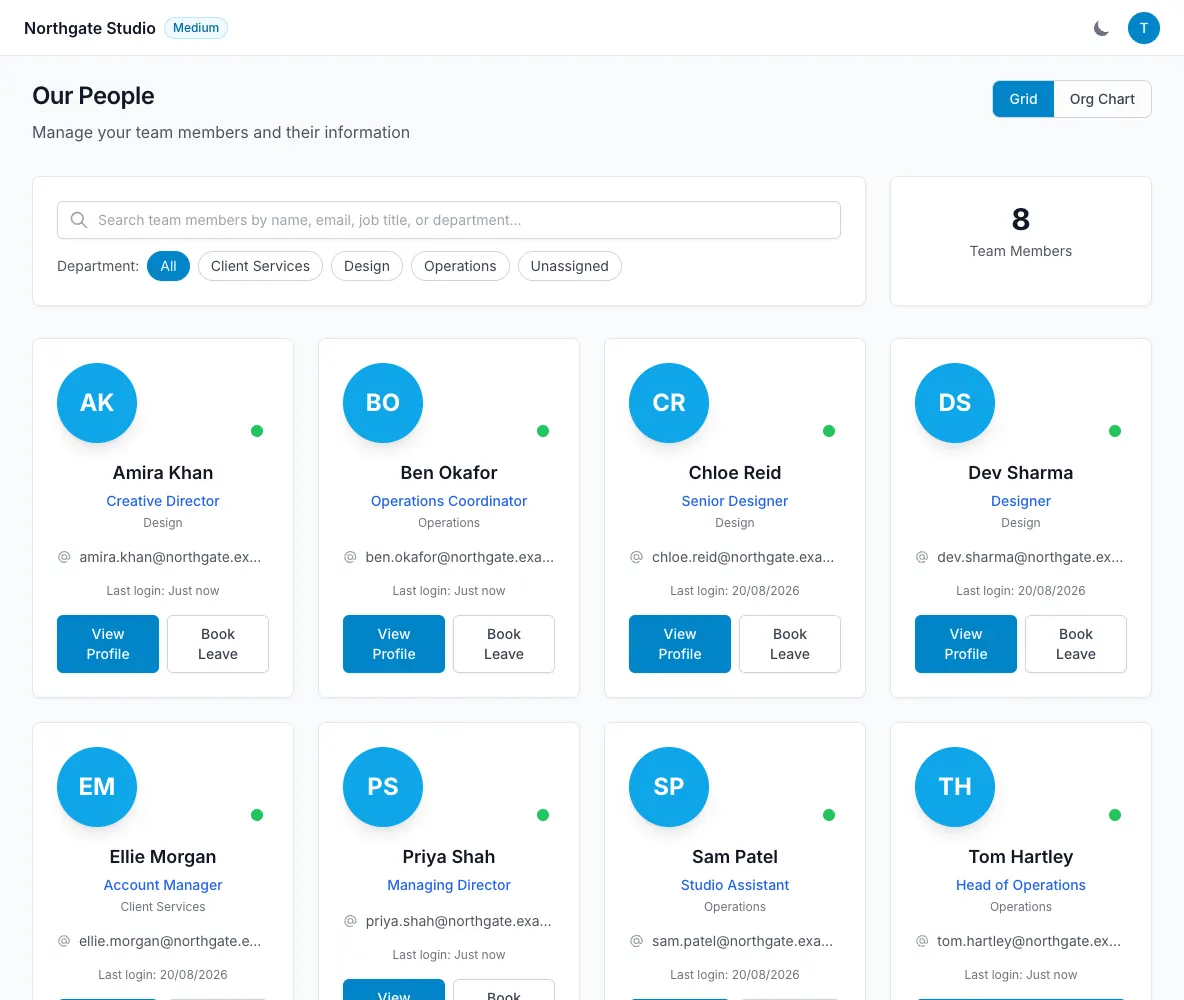
Use the people management area to invite colleagues. Check the email address carefully and set up the information you need for the person’s profile, such as job title, department, start date and contract type.
Assign the appropriate leave policy and individual working pattern. If someone joins with leave already taken or an agreed opening balance, record the starting position with a reasoned adjustment rather than changing unrelated settings to make the number fit.
Choose the right access
LeaveWise distinguishes between team admins and team members. Admins manage people, settings and administrative records. Members use the everyday leave tools and see their own HR items where those items have been made visible to them.
A department can also have a manager. This routes requests to that person and gives them the department’s approval queue. It does not mean every manager needs unrestricted access to all team administration.
Use the least access that lets someone do their role. Review roles when responsibilities change, especially when a person moves between departments or stops handling approvals.
Check your plan’s capacity
Invitations are subject to the subscription’s user cap. Starter supports up to 5 users, Team 12, Business 20 and Enterprise 100. You will be asked to move to a suitable plan before adding a person beyond the limit.
All plans include the same features. Upgrading changes capacity rather than unlocking a different approval workflow.
Keep membership current
People who leave are removed from Team Settings → Team Members; their history is kept. Review a person’s access when they leave, and check their reporting line and department when they change roles.
After invitations are accepted, ask people to check their profiles and balances. Encourage them to raise a discrepancy before their first request so the team starts from a shared, checked set of figures.