 LeaveWise
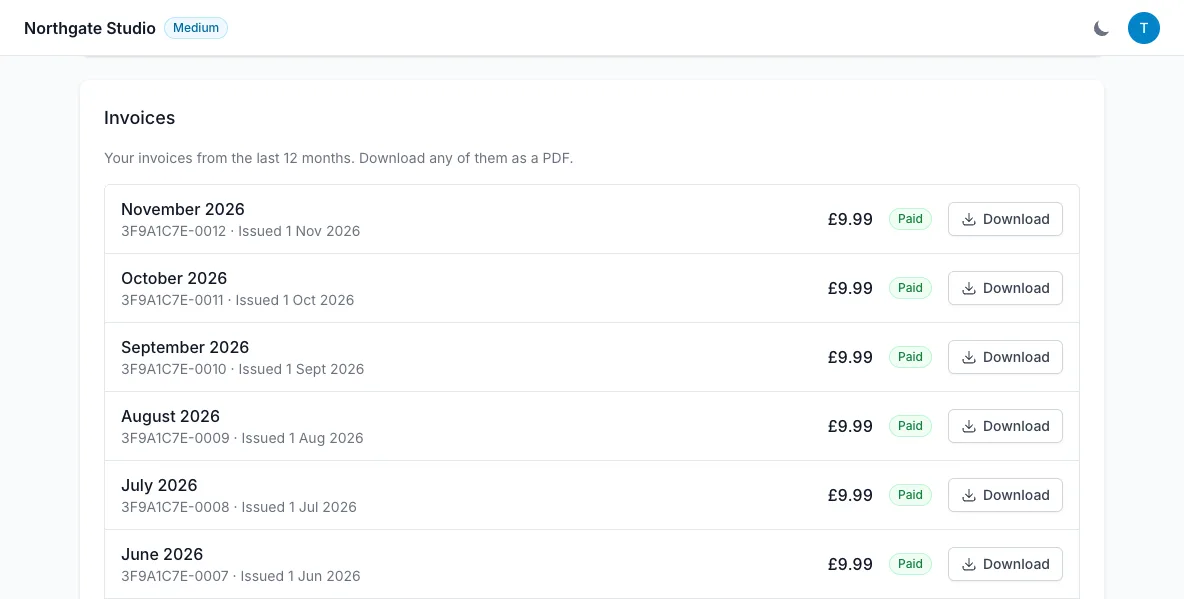
Every invoice from the last 12 months is on the Licensing tab, ready to download as a PDF. Use it for your accounts, an expenses claim or your accountant, without waiting on an email from us.
Find your invoices
Go to Team Settings → Licensing and scroll past Subscription Management to Invoices.
Each row is one invoice, newest first. On the left is the month it covers, with the invoice number and the date it was issued. On the right is the amount, its status and a Download button.
Only team admins can see this, because Team Settings is admin-only. If you are not an admin, ask one of your team’s admins to download the invoice for you.
Download an invoice
Select Download on the row you need. The invoice opens as a PDF in a new tab, where you can save or print it.
The PDF is the invoice issued by our payment provider, Stripe, with the invoice number, the billing period, the amount and any VAT, and the details you gave at checkout.
What the statuses mean
- Paid: the payment has gone through. Most invoices will show this.
- Due: the invoice has not been paid yet, usually because a card payment was declined. Select Pay on the row to pay it on Stripe’s secure invoice page, or update the card under Subscription Management so the next attempt succeeds.
- Unpaid: the payment could not be collected. Email hello@leavewise.app and we will sort it out with you.
If you joined with a free-month code, the first invoice shows £0.00. It is still a valid invoice and you can download it like any other.
If you need something different
- Invoices older than 12 months: email hello@leavewise.app from an admin’s address and we will send them.
- Your company name, address or VAT number on future invoices: email the details from an admin’s address and we will update your billing details.
- No invoices listed: if the team was set up and paid for in the LeaveWise iPhone app, the subscription is billed by Apple. Your receipts are in your Apple ID purchase history rather than in LeaveWise.