 LeaveWise
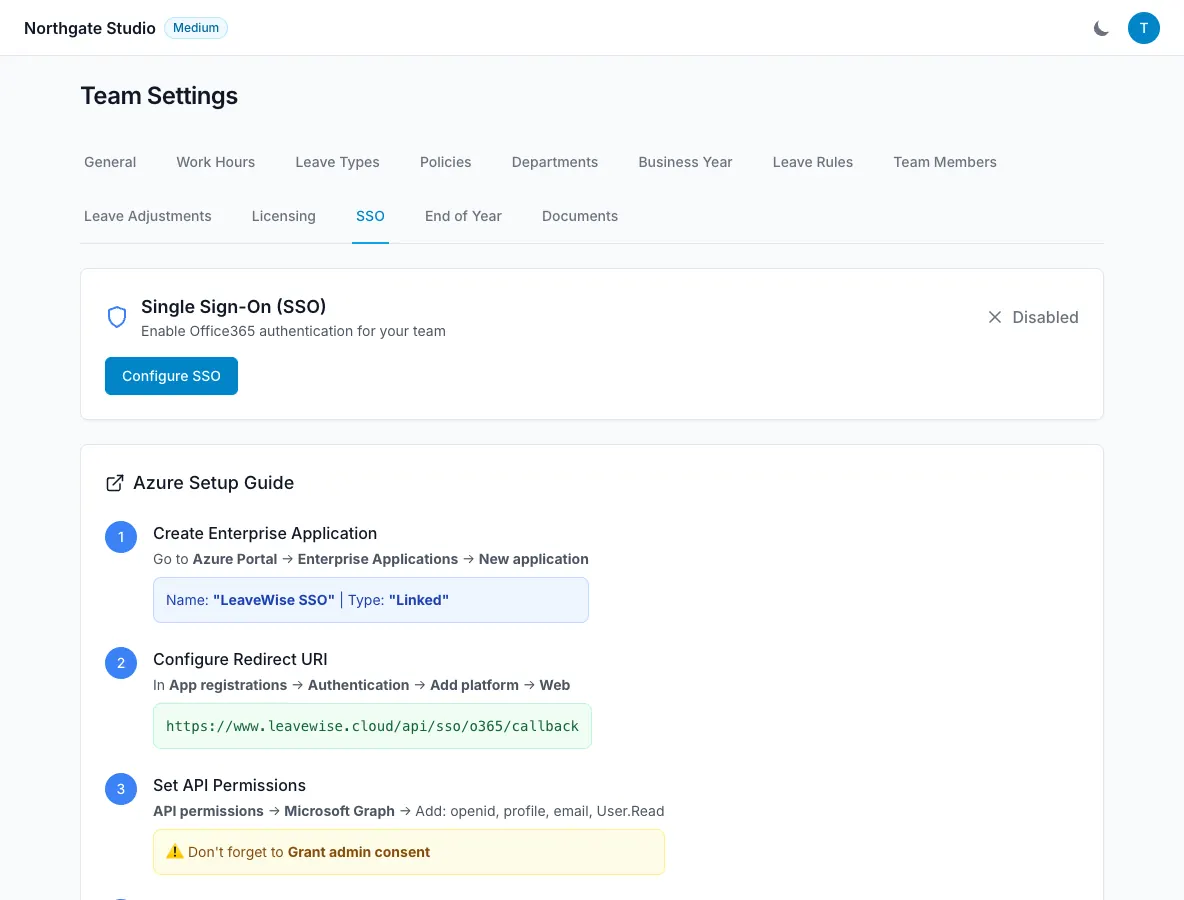
 can sign your team in with their Microsoft 365 (Entra ID / Azure AD) accounts. It is set up per team by a team admin and only ever signs in people who belong to that team.
Single sign-on is not directory sync: it does not create departments, reporting lines or admins for you. People and roles are still managed in LeaveWise.
What you need from your Microsoft tenant
You (or whoever administers your Microsoft 365 tenant) register LeaveWise as an application and note three values. The same steps are shown inside LeaveWise on the SSO tab.
- In the Azure portal go to App registrations → New registration. Name it “LeaveWise SSO”.
- Under Authentication → Add a platform → Web, add the redirect URI
https://www.leavewise.cloud/api/sso/o365/callback. - Under API permissions → Microsoft Graph, add
openid,profile,emailandUser.Read, then Grant admin consent. - Under Certificates & secrets → New client secret, create a secret and copy its value straight away — it is only shown once.
- Note the Directory (tenant) ID and Application (client) ID from the app’s Overview page.
Enter the details in LeaveWise
Go to Team Settings → SSO. Enter the Tenant ID (the GUID, or your contoso.onmicrosoft.com domain), the Client ID and the Client Secret. The secret is stored encrypted; after saving, the field only shows that a secret is set.
Use Test Connection before switching anything on. It checks that LeaveWise can reach your tenant with those values and tells you what is wrong if it cannot.
Tick Enable SSO for this team and save. SSO can be turned off again from the same tab at any time, and password sign-in keeps working alongside it.
How people sign in
On the sign-in page a person enters their email address. If their team has SSO enabled, LeaveWise shows Sign in with Microsoft and sends them to your tenant. On return they land in LeaveWise with their usual role.
Who can sign in this way:
- Anyone already in your team whose LeaveWise email matches their Microsoft account.
- Someone from your tenant who is not yet in LeaveWise is added as a team member (not an admin) the first time they sign in, provided your plan has a free seat. They count towards your user limit like an invitation would.
- Team admins keep their admin role. Super-admin accounts cannot use SSO.
If the team’s SSO is pinned to a specific tenant ID, accounts from other Microsoft tenants are refused.
Troubleshooting
- “This Microsoft account does not belong to your organisation” — the account signed in from a different tenant to the one on the SSO tab.
- “This email address is registered with a different organisation” — that email already belongs to another LeaveWise team; use a different address or ask us to move it.
- “Your organisation has reached its plan’s member limit” — upgrade the plan (Team Settings → Licensing) and try again.
- Test Connection fails — re-check the three values and that admin consent was granted. Never email the client secret to support; describe the error instead.