 LeaveWise
A location is where a person is based: an office, a client site, or home. Once people have a location you can answer questions like “who from the Halifax office is off next week?” without working it out by hand.
Locations are labels. They help you find and report on people. They do not change bank holidays, working patterns or how leave is counted; those stay as they are for the whole team.
Add your locations
Team admins manage locations in Team Settings → Locations.
- Select Add location.
- Give it a name people will recognise, such as “Halifax Office” or “Work from home”.
- Choose a type: Office, Remote / home or Site. The type only affects the icon and wording.
- Add an address if it is useful. This is optional.
- Select Save.
The list shows how many people are at each location. A name can only be used once per team.
Assign a location to a person
Open the person’s profile from Our People, go to the Assignments tab and choose their Location, then save. A person has one location at a time, or none.
Only team admins can change someone’s location. The person sees it on their own profile, under their name.
Where locations appear
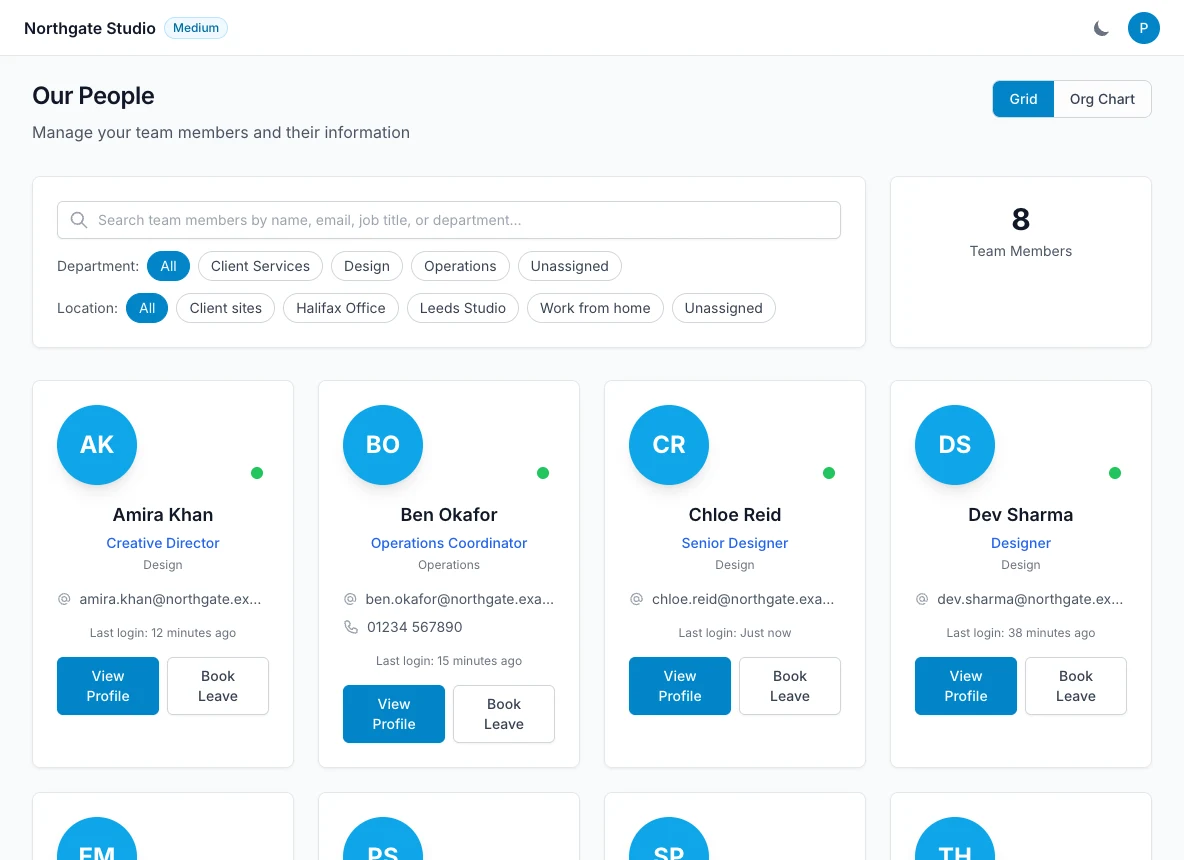
- Our People. A row of location filters sits under the department filters. Select one to show only people based there, or Unassigned to find people who have not been given a location yet.
- Org chart. Each person’s card shows their location.
- Who’s Out. A location selector at the top narrows the grid to one location. Everyone on the team can use it, not only admins.
- Reports. A location selector sits next to the department selector, so every report can be run for one location.
- Learn. Courses can be assigned to everyone at a location, and the training record can be filtered by it. See Assign and manage courses.
Edit or delete a location
Use Edit to rename a location or change its type or address. People assigned to it keep it.
Delete is only allowed when nobody is assigned to the location. Move people to another location first, the same way departments work.
Adding, changing and deleting locations is listed in Reports → Audit under Settings.
What locations do not do
Bank holidays are set once for the team, in Team Settings → Leave rules. If you have people in England and in Scotland, they currently share the team’s region. A separate bank holiday region per location is on the roadmap.