 LeaveWise
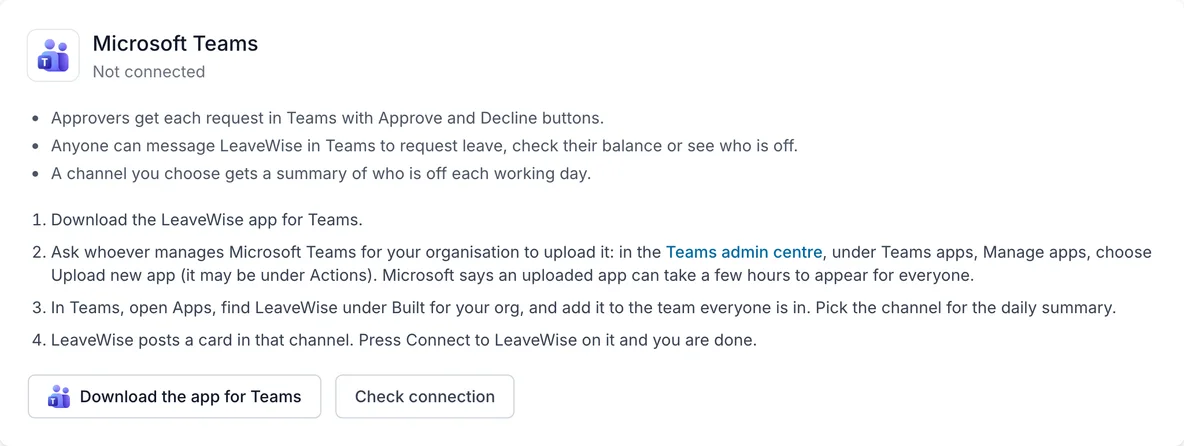
With Microsoft Teams connected, approvers get each leave request on a card in Teams with Approve and Decline buttons, anyone can request leave by messaging LeaveWise, and a channel you choose gets a summary of who is off each working day. It is included in every plan.
Nothing changes in LeaveWise itself. Requests, approvals and emails all carry on as before.
This is separate from Microsoft 365 single sign-on. You can use either without the other.
What you need
- To be a team admin in LeaveWise.
- Someone who can upload an app for your organisation in the Teams admin centre: a Teams administrator or a Microsoft 365 Global administrator. In a small business this is usually whoever set up Microsoft 365.
LeaveWise is not in the Microsoft Teams Store yet, which is why the app is uploaded once for your organisation. One Microsoft 365 organisation connects to one LeaveWise team.
1. Download the app
In LeaveWise, go to Team Settings → Integrations. Under Microsoft Teams, press Download the app for Teams. You get a file called LeaveWise-for-Microsoft-Teams.zip. Do not unzip it.
2. Upload it to your organisation
This step is for your Teams administrator.
- Open the Teams admin centre and go to Teams apps → Manage apps.
- Choose Upload new app (it may be under Actions), then Upload, and select the zip file.
Microsoft says an uploaded app can take a few hours to be available to everyone in the organisation.
3. Add it to a team
- In Teams, open Apps and look under Built for your org. Choose LeaveWise.
- Choose Add to a team and pick the team everyone is in. LeaveWise matches people from this team’s members, and can message anyone in it.
- Pick the channel where the who’s off post should go.
Choose a standard channel, the kind everyone in the team can see. Everyone who can read the channel sees the who’s off post, so avoid a shared channel that includes people from outside your organisation: they would see who is off too. LeaveWise has been tested in standard channels, and that is what we recommend.
4. Connect it to your LeaveWise team
LeaveWise posts a card in that channel headed Connect this team to LeaveWise.
A LeaveWise team admin presses Connect to LeaveWise on it. Team Settings opens in the browser (sign in if asked) and shows Microsoft Teams as connected, with the team, the channel and how many people were matched.
The button works for 24 hours. If it has expired, type @LeaveWise connect in the channel for a new card.
Choose what is sent
On the Integrations tab, each kind of message has its own switch.
- Post who’s off each working day. Around 7am, when someone is off that day or later in the week. Nothing is posted at weekends, on bank holidays, or in a week when nobody is off.
- Include the leave type in that post. Off by default, so the channel sees names and return dates but is not told that someone is off sick.
- Send leave requests to approvers. Each approver gets the request on a card with Approve and Decline buttons.
- Tell people when their leave is decided or booked for them. A message in their chat with LeaveWise, beside the email.
Press Send a test message to check a post arrives in the channel.
Move the daily post to another channel
Go to the channel in Teams and type @LeaveWise use this channel. A LeaveWise team admin has to be the one who types it. The same advice applies: pick a standard channel, not one shared with people outside your organisation.
Who is matched
LeaveWise matches each person to their Teams account by work email address, using the members of the team you added it to. The Integrations tab shows how many people are matched and names anyone who is not. Press Match people again after adding people to the team.
Someone is not matched when:
- they are not a member of that team, or
- their Microsoft 365 email is different from their LeaveWise email.
Either way, they can add the LeaveWise app for themselves in Teams (Apps → Built for your org → LeaveWise → Add) and message it. If LeaveWise cannot match them by email it shows a Connect my account button, which links the two. See Use LeaveWise in Microsoft Teams.
If something stops working
- Check connection on the Integrations tab asks Microsoft whether the connection is good and tells you the answer.
- A note appears on the Integrations tab saying LeaveWise could not post. It tells you why: usually the app was removed from the team, or your Microsoft 365 admin has blocked it.
- Teams shows as disconnected. The app was removed from the team. Add it to the team again and press Connect to LeaveWise on the new card. Your switches and matched people are kept.
Disconnect
Press Disconnect on the Integrations tab. LeaveWise stops posting in Teams and says so in the channel. To remove the app as well, a team owner can do that in Teams under Manage team → Apps.