 LeaveWise
Once a team admin has connected Microsoft Teams, you can do the everyday things without opening LeaveWise. This guide is for everyone on the team.
Find LeaveWise in Teams
LeaveWise is an app you chat with. If it has already sent you something, it is in your chat list. Otherwise open Apps, look under Built for your org, choose LeaveWise and press Add.
Send it any message, or pick from its command menu, and it replies with three buttons: Request leave, My balance and Who’s off.
Request leave
- Press Request leave, or type
request leave. - A form appears in the chat. Choose the leave type, the first day off and the last day off. Tick the box if the last day is a half day, and add a note for your approver if you want to.
- Press Send request.
The form checks the request exactly as LeaveWise does. If the dates are restricted, contain no working days for you, or would take you over your balance, the form comes back with the reason and what you entered still in place. Change it and send it again.
When it has gone, the card confirms who it went to. The request is now in LeaveWise as pending, and your approver has it in Teams and by email.
Check your balance
Press My balance, or type my balance. LeaveWise replies with what you have left this year for each leave type, how much is taken or booked, and anything still waiting for approval. Balances are only ever shown in your own chat.
See who is off
Press Who’s off, or type who's off, for who is off today and later this week. You can also ask in a channel by typing @LeaveWise who's off, and the answer is posted in that thread.
Your team’s channel may also get this each morning.
Approve or decline a request
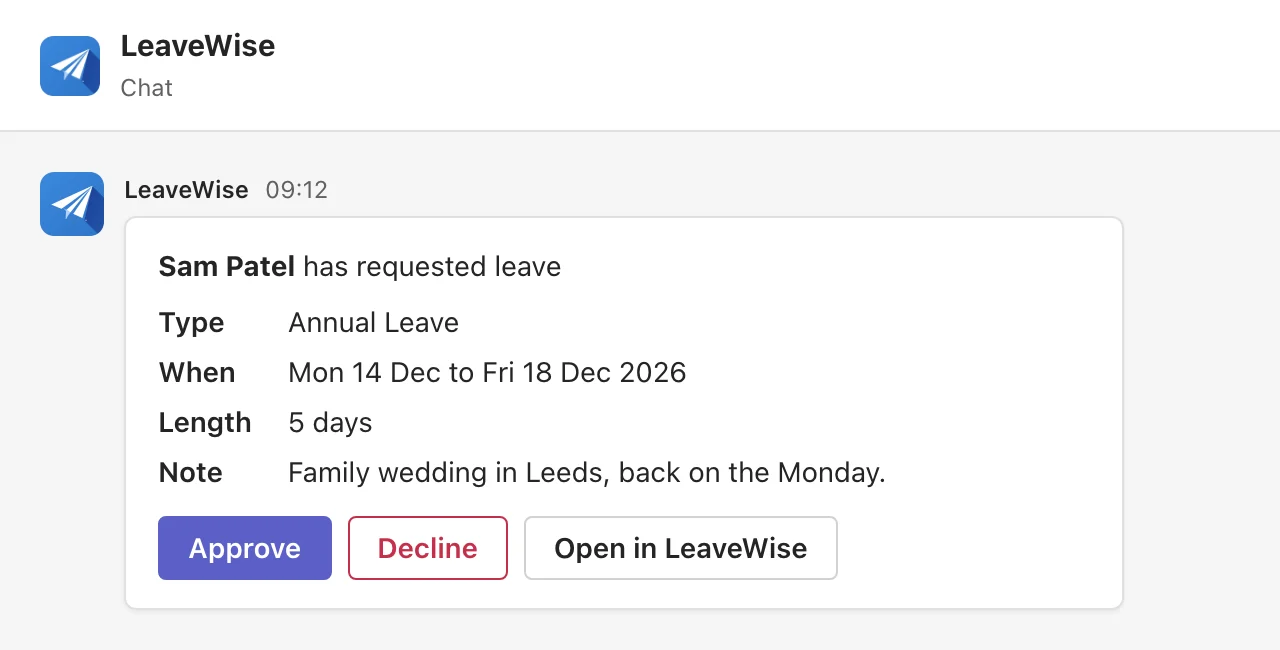
If you approve leave (as a department manager or a team admin), each request arrives as a card in your chat with LeaveWise. It shows who is asking, the leave type, the dates, how many working days it costs, their note, and who else is off or waiting for approval over the same dates.
- Press Approve to approve it.
- Press Decline to decline it.
- Press Open in LeaveWise to see it on the Approvals page, with the attachment if there is one.
The card then changes to show the outcome and who decided it, and the buttons go. The person is told in Teams and by email.
If a request went to more than one approver, everyone’s card changes as soon as one of you decides. If it is decided in LeaveWise instead, or the person withdraws it, the card changes too. Pressing a button on a request that has already been settled only shows you the outcome.
Nobody can approve their own request, in Teams or anywhere else.
Hear about your own requests
When your leave is approved or declined, or an admin books leave for you, LeaveWise tells you in your chat with it as well as by email.
“Your Teams account is not connected”
LeaveWise recognises you by your work email address. If your Microsoft 365 email is different from the one you sign in to LeaveWise with, you will see this message with a Connect my account button.
- Press Connect my account. Your LeaveWise profile opens in your browser.
- Sign in to LeaveWise if you are asked to.
- LeaveWise confirms your Teams account is connected. Go back to Teams and carry on.
You only do this once. The button works for 30 minutes; send LeaveWise another message for a fresh one.
Good to know
- Supporting documents, such as a fit note, cannot be attached from Teams. Make the request in LeaveWise if you need to attach one.
- To cancel a request, use Leave History in LeaveWise.
- If your organisation “has not connected Microsoft Teams to LeaveWise yet”, ask a LeaveWise team admin to follow the setup guide.