 LeaveWise
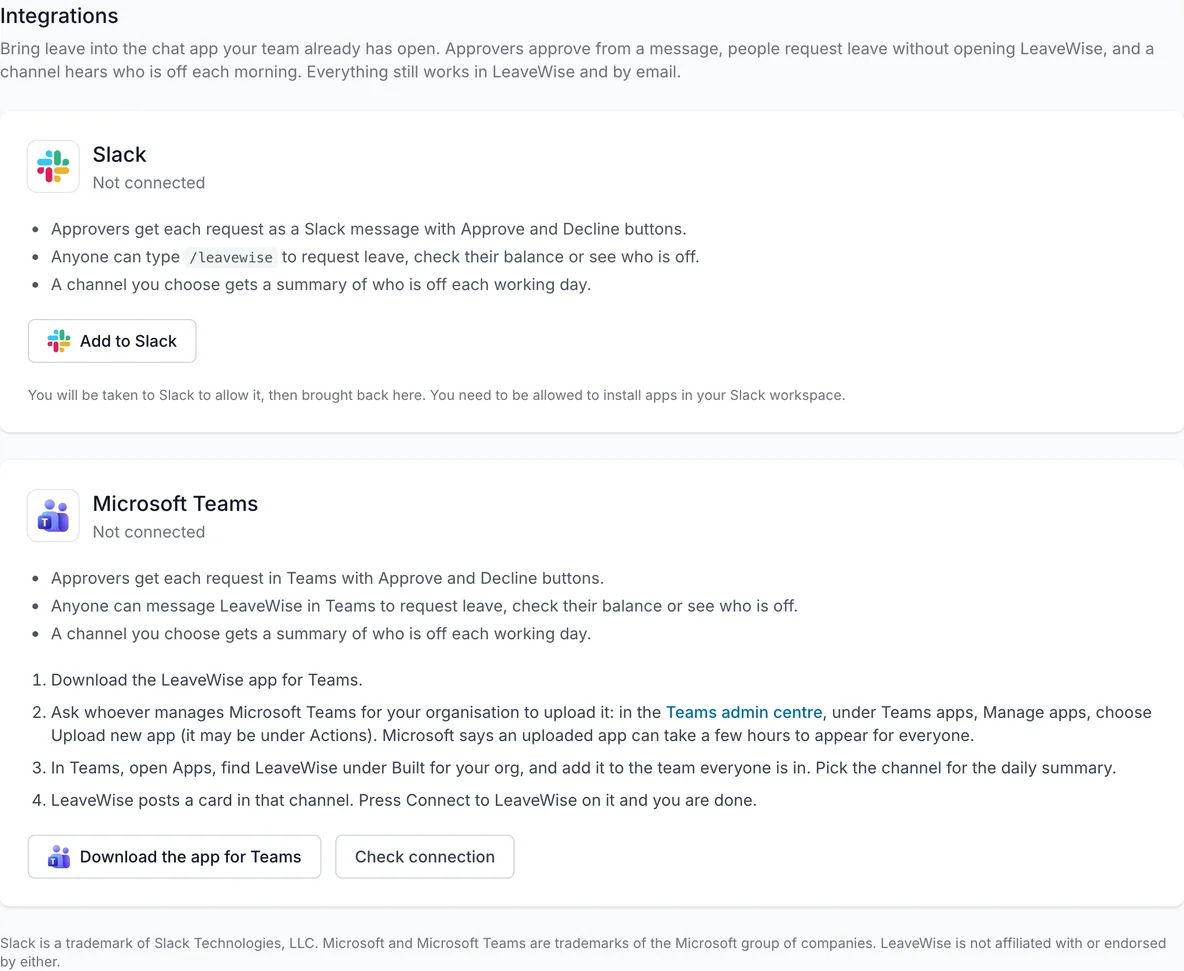
With Slack connected, approvers get each leave request as a Slack message with Approve and Decline buttons, anyone can request leave by typing /leavewise, and a channel you choose gets a summary of who is off each working day. It is included in every plan.
Nothing changes in LeaveWise itself. Requests, approvals and emails all carry on as before; Slack is an extra place to do the same things.
What you need
- To be a team admin in LeaveWise.
- Permission to install apps in your Slack workspace. In many workspaces any member can; in others only a Slack admin can, or an admin has to approve the request. If you are not sure, try it: Slack tells you if you need approval.
One Slack workspace connects to one LeaveWise team.
Connect
- In LeaveWise, go to Team Settings → Integrations.
- Under Slack, press Add to Slack.
- Slack shows what LeaveWise is asking for. Check the workspace named in the top right corner is the right one, then press Allow.
- You are returned to LeaveWise, and Slack now shows as connected to your workspace.
Choose the channel
Under Channel for the daily summary, pick the channel where the who’s off post should go. Many teams use #general; some create a #whos-off channel so it does not get lost.
Public channels are all listed. A private channel only appears once LeaveWise has been invited to it: open the channel in Slack, type /invite @LeaveWise, then press Refresh the list in LeaveWise.
Press Send a test message to check it arrives.
Choose what is sent
Each kind of message has its own switch. They take effect as soon as you change them.
- Post who’s off each working day. Around 7am, when someone is off that day or later in the week. Nothing is posted at weekends, on bank holidays, or in a week when nobody is off.
- Include the leave type in that post. Off by default, so the channel sees names and return dates but is not told that someone is off sick.
- Send leave requests to approvers. Each approver gets the request as a direct message with Approve and Decline buttons.
- Tell people when their leave is decided or booked for them. A direct message to the person, beside the email.
Who is matched
LeaveWise matches each person to their Slack account by email address. The Integrations tab shows how many people are matched and names anyone who is not.
Nobody has to do anything if their Slack email is the same as their LeaveWise email. People are matched the first time LeaveWise needs to message them, or straight away if you press Match people again.
If someone’s Slack email is different, ask them to type /leavewise in Slack. LeaveWise shows them a Connect my account button, which opens their LeaveWise profile and links the two. See Use LeaveWise in Slack.
What LeaveWise can see and do in Slack
LeaveWise asks Slack for the least it needs:
- Send messages as LeaveWise, in the channel you choose and directly to people.
- Add the
/leavewisecommand. - See the list of channels, so you can choose one.
- Look people up by email address, to match them to their LeaveWise account.
It cannot read your channels or messages.
If something stops working
- A note appears on the Integrations tab saying LeaveWise could not post. It tells you why: usually the channel was archived, or it is a private channel LeaveWise is no longer in. Choose another channel, or invite LeaveWise back.
- Slack shows as disconnected. Someone removed LeaveWise from the workspace in Slack. Press Connect Slack again. Your channel, switches and matched people are kept.
- Check connection asks Slack whether the connection is still good and tells you the answer.
Disconnect
Press Disconnect on the Integrations tab. LeaveWise is removed from the Slack workspace and stops posting there. Nothing is lost in LeaveWise.