 LeaveWise
A one-to-one is a regular conversation between a manager and one of their people. LeaveWise schedules them, reminds you both, and keeps the agenda, notes and actions together so the next conversation starts where the last one ended.
Who can hold one
One-to-ones are held by the people who approve that person’s leave: their department manager, or the team admins. Nobody holds a one-to-one with themselves.
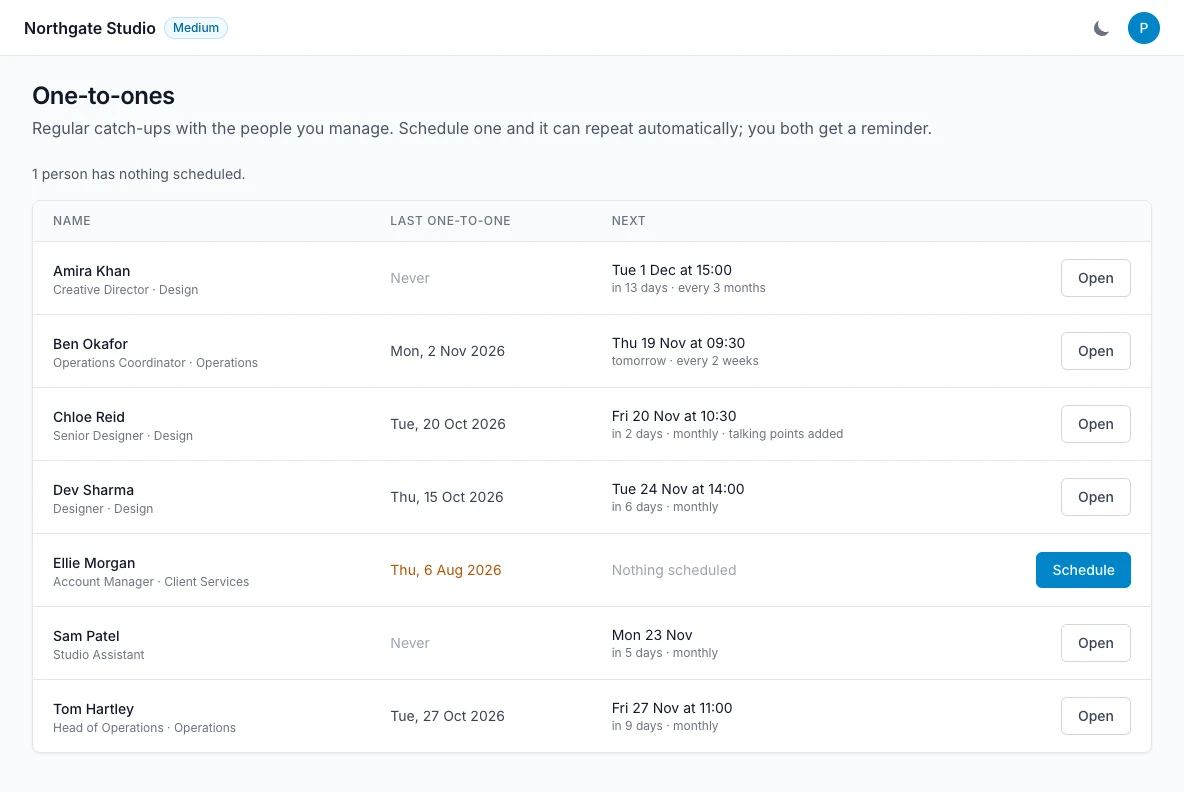
Managers and admins find everyone they hold one-to-ones with on Manage → One-to-ones. The page shows each person’s last one-to-one and when the next is. A date more than 90 days ago is shown in amber, and anyone with nothing scheduled is counted at the top.
Schedule a one-to-one
- On One-to-ones, select Schedule next to the person. Admins can also do this from the One-to-ones tab on the person’s profile.
- Choose a date and, if you like, a time.
- Choose how it repeats: does not repeat, weekly, every 2 weeks, monthly or every 3 months.
- Add an agenda if you have one.
- Select Schedule.
The person is emailed the date straight away. Whoever schedules the one-to-one holds it.
A repeating one-to-one creates the next one each time you complete or skip it. Monthly and quarterly repeats keep the weekday: a one-to-one on the third Friday is followed by the third Friday of the next month, so it never drifts onto a weekend.
Before the meeting
The employee sees their next one-to-one on their Dashboard in the week before, and on the One-to-ones tab of their own profile. They can add talking points: anything they want to cover. You can see that they have.
If the date falls on the person’s approved leave, a bank holiday or a day they do not work, LeaveWise says so on the list and in the reminder, so you can move it. To move it, open the one-to-one and change the date or time; the person is emailed the new date.
During and after
Open the one-to-one to see the whole conversation on one page:
- Agenda. What you planned to cover.
- Talking points. What the employee added. Only they can edit these.
- Shared notes. What you discussed and agreed. The employee can read these.
- Private notes. For you. Only the person holding the one-to-one and team admins can read them. The employee never sees them, and they are never included in an email.
- Actions. Things to do, each belonging to you or to the employee. Either of you can tick one off.
Select Save to keep changes while the meeting is still open, or Mark complete when it is done. By default the employee is emailed the shared notes and the actions when you mark it complete; untick the box if you would rather not send that.
Completing a repeating one-to-one schedules the next one, and any actions that are not finished are carried into it.
Cancel or skip one
Open the one-to-one and select Cancel this one-to-one. For a repeating series you choose whether to skip just this one, in which case the next is scheduled as usual, or to end the series. The person is emailed.
Reminders
With one-to-one reminders on, which they are by default:
- You and the employee each get an email the day before and on the day.
- If a one-to-one is 3 days past its date and not completed, the manager gets one nudge.
Team admins can turn these off in Team Settings → Leave rules → Reminders. See Reminder emails.
Your one-to-ones also appear in your personal calendar feed, alongside your leave. See Subscribe to your calendar.
What the employee can see
The employee can read the agenda, their talking points, the shared notes and the actions for their own one-to-ones, upcoming and past. They cannot edit the meeting, complete it or cancel it, and they cannot see private notes. Colleagues cannot see each other’s one-to-ones.
The record
Scheduling, moving, completing and cancelling a one-to-one is listed in Reports → Audit under HR, with who did it and when. The content of notes is never written to the audit log.
Reports → People has a Last one-to-one column showing when each person last had one and when the next is. See Reports.